在家庭网络中使用RouterOS v7打造WireGuard+SSTP双隧道

翻看博客的数据,发现 2020 年写的《在家庭网络中使用RouterOS路由器全局翻墙》依然有很多访问量。时过境迁,网络封锁技术在不断升级,当年推荐的 L2TP 协议虽然能用,但在目前的网络环境下已经显得力不从心,极易受到干扰。
随着 RouterOS v7 (ROSv7) 的普及,原生支持的 WireGuard 为我们打开了新世界的大门。今天,我来全面更新这份文档,带大家部署一套 “以 WireGuard 为主(极速),以 SSTP 为辅(兜底)” 的现代化高可用双隧道出海架构。
为什么需要 WireGuard + SSTP 双隧道?
在复杂的网络环境下,软路由出海面临着一个经典的“既要又要”难题:
- 要速度:首选 WireGuard (UDP)。速度极快、无状态漫游、性能损耗极低。缺点:UDP 流量特征明显,在敏感时期极易被运营商 QoS 限速或直接阻断。
- 要稳定:首选 SSTP (TCP 443)。将流量伪装成标准的 HTTPS 流量,穿透性极强,堪称“不死隧道”。缺点:TCP Over TCP 会带来较高的握手开销,延迟偏高,极限速度较慢。
本教程的思路是“成年人全都要”。我们将利用 ROSv7 的强大路由能力,搭建双隧道容灾架构。当 WireGuard (UDP) 被阻断的瞬间,路由器会自动无缝切换到 SSTP 隧道,确保业务不断线;当封锁解除,又会自动恢复极速的 WireGuard 通道。
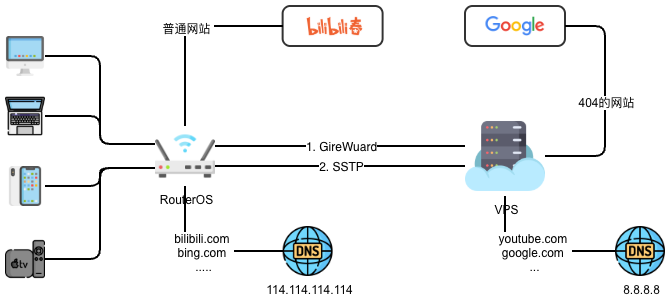
一、 VPS 服务端环境搭建
依然推荐选择延迟和丢包率表现相对优秀的日本东京机房。服务器操作系统推荐安装 Ubuntu 22.04。
1. 部署 WireGuard 服务端 (极速主通道)
推荐使用开源的一键安装脚本,省去繁琐的密钥生成步骤。通过 SSH 连接到你的 Ubuntu 22 VPS 并执行:
# 安装WireGuard
apt install wireguard -y
# 生成服务器公私钥
cd /etc/wireguard
umask 077
wg genkey | tee server_private.key | wg pubkey > server_public.key
# 开启系统的IP转发
echo "net.ipv4.ip_forward = 1" | sudo tee -a /etc/sysctl.conf
sudo sysctl -p
# 配置 /wg0.conf
vim /etc/wireguard/wg0.conf


[Interface]
Address = 10.0.0.1/24
ListenPort = 12345 # 不建议使用默认端口,
PrivateKey = <在这里填入 Ubuntu 的 server_private.key>

[Peer]
# 这是 RouterOS 的信息
PublicKey = <先留空,等下在 ROS 里生成后填入>
# 关键:允许的 IP 必须包含 ROS 的内网网段,这样 Ubuntu 才会把发往 192.168.88.x 的流量扔进隧道
AllowedIPs = 10.0.0.2/32, 192.168.88.0/24


# 启动服务生效

systemctl enable --now wg-quick@wg0
2. 部署 SSTP 服务端 (不死兜底通道)
SSTP 依赖 TCP 443 端口,最快捷的方法是使用 SoftEther VPN 的 Docker 镜像。
# 创建 docker-compose.yml文件
vim docker-compose.yml
services:
  # 新增的 SoftEther VPN 容器
  softether:
    image: siomiz/softethervpn:latest
    container_name: softether
    cap_add:
      - NET_ADMIN # VPN 必须的网络权限
    environment:
      - SPW=111111 # 这里设置你的服务器管理密码(供 vpncmd 登录用)
      - USERNAME=vpn-user               # 自动为你创建 VPN 拨号账号
      - PASSWORD=222222            # 自动为该账号设置拨号密码
    restart: always


# 启动容器
docker compose up -d
二、 RouterOS v7 建立双隧道
打开 WinBox,进入家里的 RouterOS v7 系统。
1. 建立 WireGuard 接口
进入 WireGuard 菜单,添加接口与对等节点(Peer)。
# 创建本地 WG 接口
/interface wireguard
add listen-port=51820 mtu=1420 name=wg-vultr

# 给 WG 接口配置刚刚脚本分配的内部 IP (假设为 10.66.66.2)
/ip address
add address=10.66.66.2/24 interface=wg-vultr

# 添加 VPS 服务端为 Peer (替换为你的 VPS 公网 IP 和服务端公钥)
/interface wireguard peers
add allowed-address=0.0.0.0/0 endpoint-address=你的VPS公网IP endpoint-port=51820 interface=wg-vultr persistent-keepalive=25s public-key="<VPS端WireGuard公钥>"
2. 建立 SSTP 接口
进入 PPP -> Interfaces 菜单添加 SSTP 客户端。
/interface sstp-client
add connect-to=你的VPS公网IP disabled=no name=sstp-vultr password=rospassword profile=default-encryption user=ros-sstp verify-server-address-from-certificate=no
(注:如果 VPS 没有配置真实的 SSL 证书,请务必保持 verify-server-address-from-certificate=no 以信任自签名证书。)
三、 高阶故障转移路由 (Failover)
这是整套方案的灵魂。WireGuard 是无状态的,即使 UDP 包被拦截,ROS 依然认为接口是 running 的。因此必须依靠 Netwatch 实时监控。
1. 创建双通道静态路由
我们在主路由表里建好两条路,并加上特定的 Comment,方便 Netwatch 抓取。
/ip route
# WireGuard 路由 (主通道,Distance 默认 1)
add dst-address=8.8.8.8/32 gateway=wg-vultr routing-table=main comment="Route-WG"

# SSTP 路由 (兜底通道,Distance 设为 2)
add dst-address=8.8.8.8/32 gateway=sstp-vultr routing-table=main distance=2 comment="Route-SSTP"
2. 部署 Netwatch 智能探针
让路由器每秒 Ping 一次 VPS 的 WireGuard 内网 IP(如 10.66.66.1)。如果不通(说明 UDP 被墙),立即自动禁用 WG 路由,流量瞬间顺延到 Distance=2 的 SSTP 隧道。
/tool netwatch
add host=10.66.66.1 interval=3s timeout=1s \
    down-script="/ip route disable [find comment=\"Route-WG\"]" \
    up-script="/ip route enable [find comment=\"Route-WG\"]"
四、 流量分流与 DNS 净化
之前的旧方案中,我们依靠 Layer7 协议来匹配域名劫持 DNS,这种方式对 CPU 性能消耗较大。在 ROSv7 中,我们可以利用更优雅的 DNS FWD 特性。
1. 配置 NAT 伪装
/ip firewall nat
add action=masquerade chain=srcnat out-interface=wg-vultr comment="NAT for WG"
add action=masquerade chain=srcnat out-interface=sstp-vultr comment="NAT for SSTP"
2. 动态收集被墙域名 IP (ROSv7 新特性)
利用 FWD 规则,将海外域名转发给干净的 8.8.8.8 解析,并自动将解析出的真实 IP 塞进 gfw-ip 列表,完美解决域名污染问题。
/ip dns static
add match-subdomain=yes name=google.com forward-to=8.8.8.8 type=FWD address-list=gfw-ip
add match-subdomain=yes name=youtube.com forward-to=8.8.8.8 type=FWD address-list=gfw-ip
add match-subdomain=yes name=github.com forward-to=8.8.8.8 type=FWD address-list=gfw-ip
3. Mangle 策略路由打标
/ip firewall mangle
add action=mark-routing chain=prerouting dst-address-list=gfw-ip new-routing-mark=to-vpn passthrough=no comment="Route overseas traffic"
(注意:需要在 /routing table add name=to-vpn fib 中注册该路由表,并将上文指向 8.8.8.8 的隧道路由也映射进此表。)
五、 Q\&A
1. 为什么有的视频加载不出或者提示证书错误?
这通常是因为 ROS 或你的电脑缓存了一个被污染的旧 IP。解决方法是清空 ROS 内的 DNS 缓存 (IP->DNS->Cache->FlushCache),并在电脑上执行 ipconfig /flushdns。另外,对于视频网站,记得将相关视频 CDN 域名(如 googlevideo.com)也加入 DNS FWD 列表中。
2. 家里有 NAS 跑 PT 下载,如何让 NAS 强制不走隧道?
可以通过 DHCP 分配将局域网拆分为两个区段。例如,在 Mangle 规则中,将 Src. Address 指定为 192.168.88.0/25(前半段走 VPN),并将 NAS 的静态 IP 设为 192.168.88.200(后半段不走 VPN)。
如果觉得文章内容比较实用,期望获得更新通知,请关注公众号: